Photo to coloring page A4 PDF
If your goal is a clean print, the format matters. An A4 PDF keeps outlines sharp, preserves margins, and avoids random scaling that can happen with images. This page shows what to expect and how to print consistently.
- A4 layout that fits home printers
- Sharp outlines that do not blur on print
- Simple workflow from photo to PDF
Related: Pillar page · Printing checklist · App guide
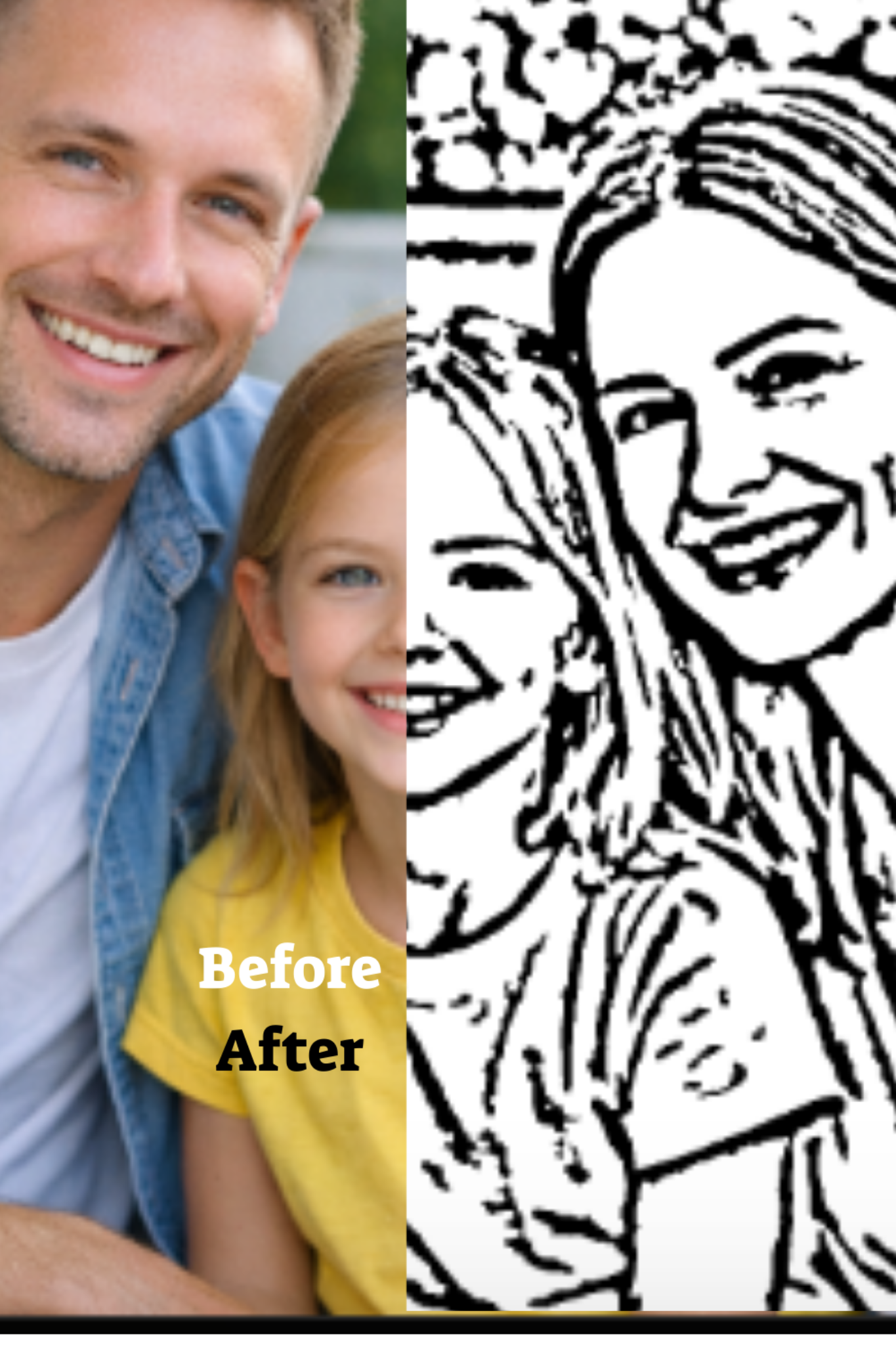
Why A4 PDF beats printing from images
When you print an image file, many browsers and apps silently resize it. That can shrink the page, crop borders, or soften line quality. A PDF is designed for printing and preserves the intended page size and margins.
For the main hub guide, use: Photo to coloring page. This page supports that hub by targeting A4 PDF intent searches.
Best print settings
Use Actual size
Print at 100 percent or Actual size when possible. This keeps margins consistent and prevents cropping.
Choose A4 paper size
In the print dialog, confirm A4 is selected. If your printer defaults to Letter, the print may scale.
Turn off background graphics
Some browsers print background elements and can create faint gray areas. Keep outlines clean by disabling it.
Avoid Draft mode
Draft mode can make thin lines look broken. Normal or High quality produces cleaner outlines.
For the full printing checklist, read: How to print coloring pages at home.
How to get a better PDF result
- Pick a sharp photo with good lighting.
- Use a simple background or crop tighter.
- Confirm the preview outlines look clean.
- Print from the PDF, not from screenshots.
If you want better input photos, read: What makes a good photo for a coloring page.
FAQ
Can I print on Letter paper?
Yes, but you may see different margins. If you are in the US, Letter is common. Use Fit to page and confirm nothing important is cropped.
Will the lines stay sharp?
PDFs preserve vector like crispness better than images. The main quality factor is printing at Normal or High quality and not using Draft mode.
What if the page looks too detailed?
Try a simpler photo or crop tighter. Busy backgrounds create extra outlines.
Next step
Create your A4 PDF coloring page here: Create a coloring page. For the full hub guide, go to: Photo to coloring page.
Back to the pillar: Turn family photos into printable coloring pages.
Ready to create your coloring page
Upload a photo, preview the result, then choose a plan and receive your printable A4 PDF by email.